How Can KVM on MSI AIO PCs Help Enhance Operability?
All-in-One PCs
As modern workspaces continue to change, efficiency, flexibility, and space optimization have become essential. Selected MSI All-in-One PC models now feature built-in KVM functionality, providing a practical solution for users who operate multiple systems while maintaining a clean, streamlined workspace.
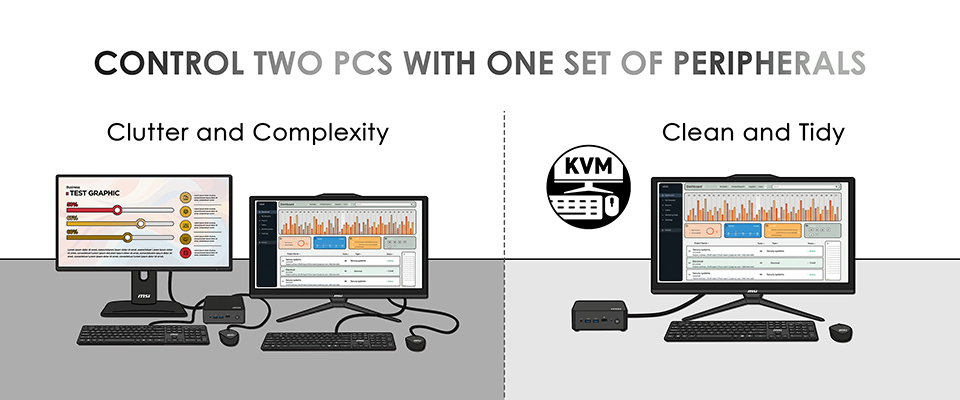
Use One AIO Display to Operate Both Your AIO and Mini PC
Many users pair an MSI All-in-One PC with a Mini PC for multitasking, data processing, system validation, or departmental workflows. With the built-in KVM function, both systems can be operated on a single AIO display, creating an efficient and space-saving setup.
In this configuration, the AIO serves as the shared display for both computers. Users can switch between systems instantly while continuing to use the same keyboard and mouse. IT professionals can move between the AIO and a Mini PC to manage different operating environments or testing platforms. At the same time, office staff can switch smoothly between daily productivity tasks and secure, system-specific applications. By consolidating operations onto a single screen, this setup reduces hardware redundancy and keeps workspaces clean and organized, making it ideal for compact offices or home workstations.
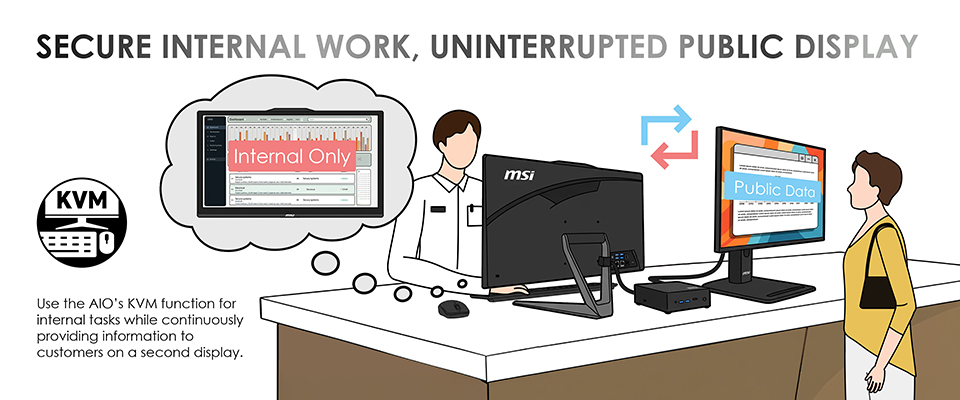
Ideal for Public Service and Front-Desk Environments: Display Public Information on One Screen While Managing Internal Operations on Another
In public-facing environments such as banks, government offices, and service counters, it is often necessary to separate customer-facing content from internal systems. MSI’s KVM functionality supports this dual-display workflow while maintaining centralized control.
In this setup, the All-in-One PC remains the primary workstation for internal operations, while a second computer such as a Mini PC drives a dedicated public-facing display. Staff can manage both systems using a single keyboard and mouse, switching control seamlessly without interrupting ongoing tasks. This allows employees to update service information or digital signage on the public screen while continuing internal workflows on the AIO. The result is a more professional front-desk environment with fewer peripherals, reduced desk clutter, and improved operational efficiency.
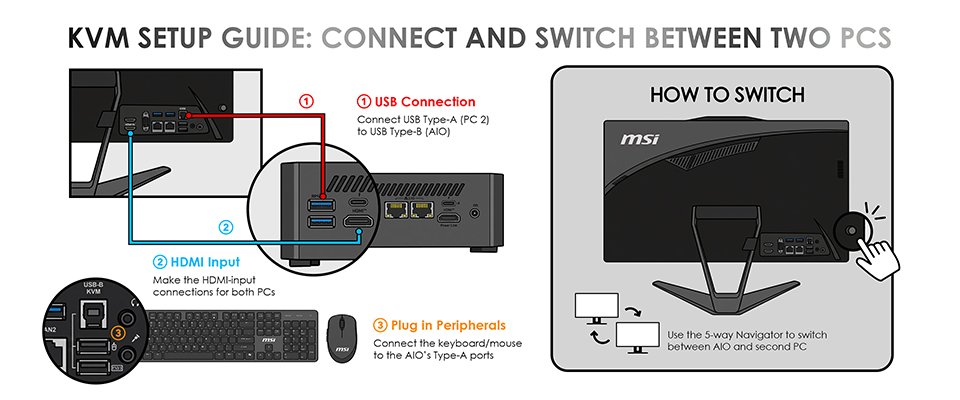
How to Set Up and Switch the KVM Function
Setting up MSI’s KVM is simple:
- USB Connection: Connect USB Type-A port of the second PC to the AIO’s USB Type-B port.
- HDMI Input: Connect the second PC to the AIO using an HDMI input connection.
- Peripheral Connection: Plug your keyboard and mouse, or wireless dongle, into the AIO’s USB Type-A Port located beneath the Type-B port to enable KVM control.
- Input Switching: Use the 5-way navigator button to select the input source and switch between the AIO and the second PC.
Find KVM-supported AIO models by selecting MSI Features > KVM at the following link.