Connect Your Laptop to Multiple Gaming Monitors
Laptops ,
Monitors
A laptop is an obvious choice when you need a portable machine for work, leisure, or study. Thanks to modern chips from Nvidia, AMD, and Intel, laptops now boast desktop-like performance – making them quite adept at handling intensive workloads like gaming and production without giving up portability or battery life.
However, the multitasking experience on a laptop remains a problem. Your laptop screens limit the screen real estate you have, especially when you need to juggle several apps, browser tabs, and so on. But what’s if you don't want to sacrifice the portability of your laptop?
Multi-monitor setups built around your laptop, of course!
The primary attraction towards multi-monitor setups stems from a need for additional screen real-estate, whether you want to game, watch movies, or even work. So, let’s explore how to connect multiple monitors to your laptop and create your dream setup.
Multi-monitor setups built around your laptop, of course!
The primary attraction towards multi-monitor setups stems from a need for additional screen real-estate, whether you want to game, watch movies, or even work. So, let’s explore how to connect multiple monitors to your laptop and create your dream setup.
Why Use Multiple Monitors?
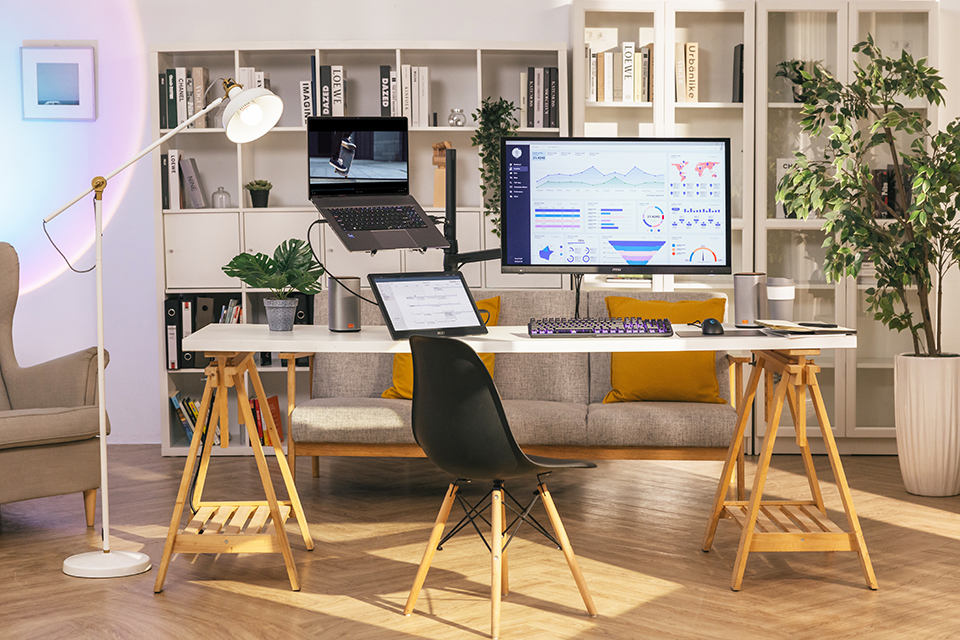
Even the highest-resolution laptop displays are limited by their physical size, which means your screen area is limited. Considering a multi-monitor setup makes sense when you think about the advantages:
- Supplementing your laptop display with another monitor grants you more screen real estate for work and gaming. It’s even better if you can add two monitors and keep your laptop display closed!
- Multiple monitors are invaluable for any work that involves juggling several applications and/or browser tabs. You can keep an eye on several applications simultaneously with two larger monitors: a task that would be nearly impossible on a relatively small laptop display.
- The additional screen real estate can significantly boost your productivity by allowing you to keep all the tools and resources you need at hand.
- Larger monitors also enhance your entertainment experience when watching high-definition movies or shows on Netflix, YouTube, etc.
- Creative applications like Adobe’s Premiere Pro benefit from the additional screen real estate to grant you better access to essential tools like the timeline.
If you have the budget and space for a multi-monitor setup, it’s clear that you should opt for one to maximize productivity without hampering portability when you need it.
Getting Ready to Connect Multiple Monitors to Your Laptop
You need to check a few things before we connect multiple displays to your laptop. We’ll use the “MSI Creator Z17 HX Studio – A13V” Laptop as an example throughout this section.
Check laptop ports: Is a Multi-Monitor Setup Viable?
Not all laptops can handle multiple monitors from the get-go. Some might require Thunderbolt hubs or different cables. Some older laptops may not even support the capability at all. In this case, it’s time to look for an upgrade.
To confirm whether your laptop supports multi-monitor setups, check its available display output ports. You’ll need access to at least two display out ports if you want to connect two monitors.
To confirm whether your laptop supports multi-monitor setups, check its available display output ports. You’ll need access to at least two display out ports if you want to connect two monitors.
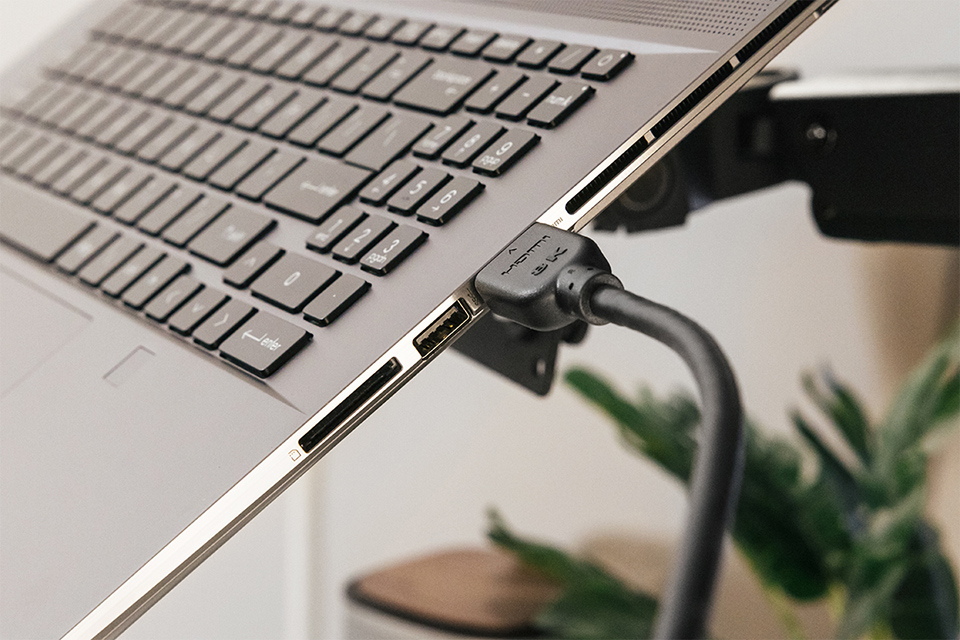
On our laptop model, you can see 2x USB Type-C ports, 1x USB Type-A port, and a single HDMI display out port. However, the USB Type-C ports are equipped with Thunderbolt 4, which allows them to handle display signals. So, this laptop, in our example, can easily handle up to three monitors.

Note: Although you can use a USB Type-C Thunderbolt to DisplayPort (or HDMI) cable to connect your monitor, it’s not ideal as you block a valuable port when using multiple monitors. A Thunderbolt 4 dock would be a far better choice as you can not only connect to an external display, but can also connect peripherals, external storage devices, etc.
This port selection is pretty typical of a modern laptop. Sometimes, only a single USB Type-C port might support Thunderbolt or a Display output. So, check your laptop’s specifications or manual to confirm.
Check your Graphics Card
Once you’ve confirmed the number of display output ports on your laptop, it’s time to look into its graphics capabilities. The more powerful the graphics chip in your laptop, the better it can handle multiple displays.
Confirming the GPU in your laptop is pretty straightforward.
Confirming the GPU in your laptop is pretty straightforward.
- Hit the Windows Key or click the search icon on the Windows taskbar and type “Device Manager”
- Here, look for a category called “Display Adapters”
- Expand it by clicking the tiny arrow on its left, and you’ll see a list drop down.
Most laptops come equipped with Intel, AMD Radeon, or Nvidia graphics. If yours boasts either Nvidia (20-series and above), AMD Radeon (5000-series and up), or Intel Arc graphics, you won’t need to worry about graphics horsepower. Go ahead and buy the highest-resolution monitors out there, and you’ll be able to game and work on it just fine.
However, if your laptop features an older graphics chip, you should look into some benchmarks (for your apps and games) before pulling the trigger on multiple high-resolution displays.
However, if your laptop features an older graphics chip, you should look into some benchmarks (for your apps and games) before pulling the trigger on multiple high-resolution displays.
Let’s Extend Your Workspace: Connecting Laptop to Monitor
Now that you’ve ensured your laptop supports at least dual monitors, it’s time to start.
Setup #1: Laptop Screen Extended by a Single Monitor
In this first setup, we use your laptop’s built-in display as the first screen and a monitor as the second display. The monitor that we’ve picked for this task is the MAG 323UPF Gaming Monitor. Its 4K resolution offers more screen real estate and a crisper visual experience compared to a traditional Full HD monitor option.
Plug in your monitor and connect it to your laptop using the correct interface. Since we need to connect only a single external monitor, we can use an HDMI™ cable to connect our laptop to this display. If all goes well, you should see your screen on your monitor.
By default, Windows duplicates the displays. However, you need to set this to ‘Extend.’
Hitting the Windows Key and ‘P’ will bring up the Windows projection menu:
By default, Windows duplicates the displays. However, you need to set this to ‘Extend.’
Hitting the Windows Key and ‘P’ will bring up the Windows projection menu:

Select the 3rd option here, ‘extend.’
This should extend your screen across your laptop display and monitor. You can find out exactly how to customize your workspace and screens below.
Setup #2: Dual External Monitors
A distinct advantage of going for this setup over the setup that uses your laptop screen as the second display is uniformity. In this configuration, you can opt for displays sitting side-by-side to maximize screen real estate.
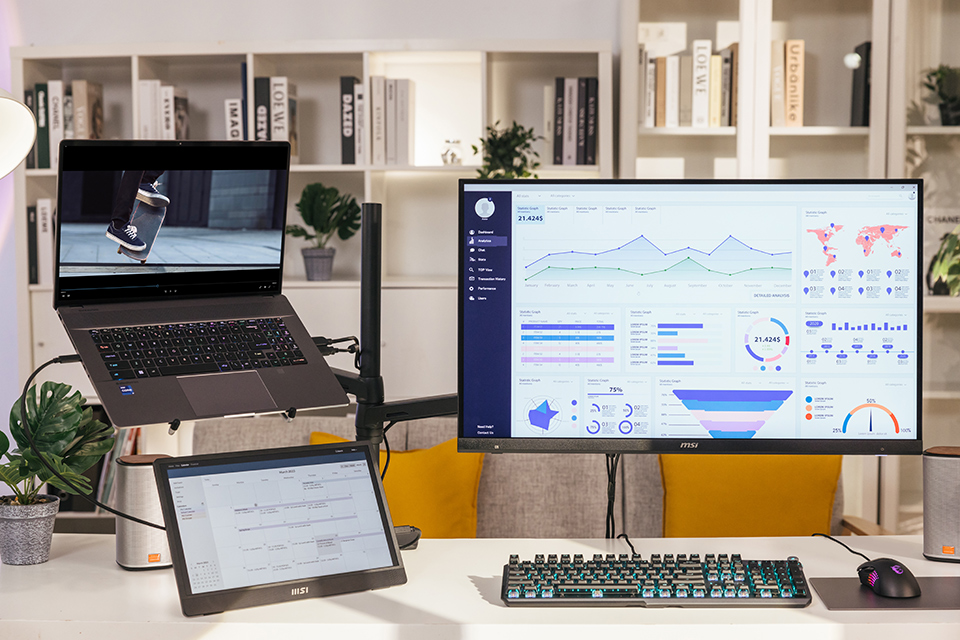
Let’s use an MSI MAG 323UPF Gaming Monitor this time for our primary display. Connect it to the laptop using an HDMI™ cable, as detailed in Setup #1.
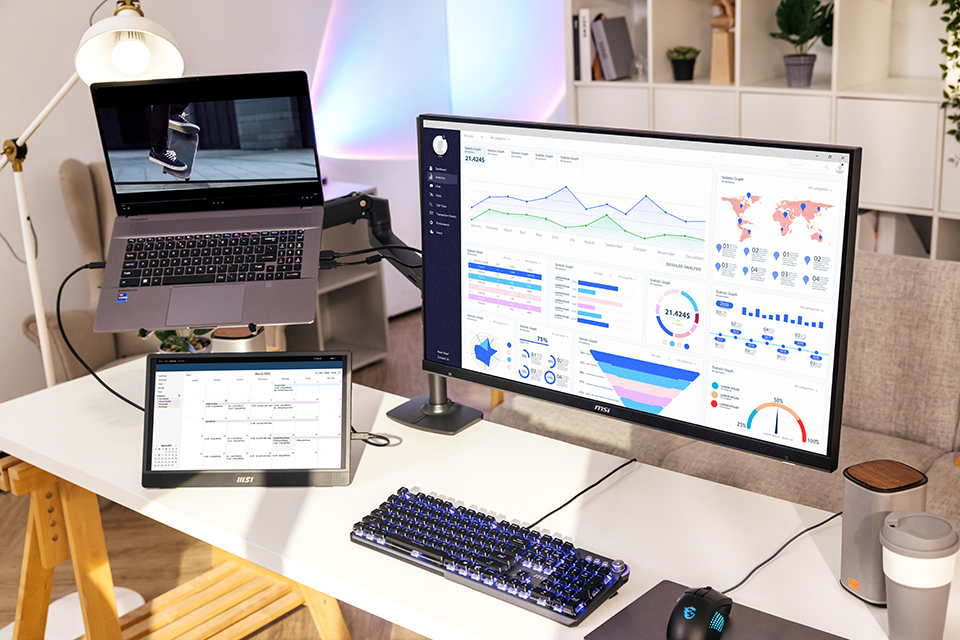
You’ll need one of the following to connect the second monitor to your laptop:
- A Thunderbolt Hub
- Type-C to HDMI Adapter
- USB Type-C to HDMI Cable
- USB Type-C to DisplayPort Cable

Thankfully, both USB Type-C ports on our MSI Creator Z17 HX Studio – A13V Laptop support Thunderbolt 4, so it doesn’t matter too much which one you use. However, this varies laptop-to-laptop, so make sure you find the correct port on your model.
Next, combine the MSI MAG 323UPF 4K Gaming Monitor and a MAG MP161 Full-HD Portable Gaming Monitor for this setup to enjoy unmatched flexibility.
Next, combine the MSI MAG 323UPF 4K Gaming Monitor and a MAG MP161 Full-HD Portable Gaming Monitor for this setup to enjoy unmatched flexibility.

In addition to giving you access to a third screen (with a 1080p / Full HD resolution) when you’re at your workspace, you can also carry it with your laptop to create temporary dual-display workspaces (laptop screen + MAG MP161) when needed.
Note: The connection process remains identical.
Customizing a Multi-Monitor Setup in Windows
Windows display settings give you more flexibility to tweak your setup. You can change your primary (or 1st) display, scaling (default sizes of icons, texts, and windows), resolution, and orientation.

You can find these settings here: Settings → System → Display.

You could also right-click on an empty space on your desktop and select ‘Display Settings’ to reach this screen. Scrolling down here will give you access to the additional layout and scaling options.
We have also developed the tool you need to tweak these settings using an intuitive interface within the MSI Gaming Intelligence application (link). It grants fine-grained control and customization of your newly-extended workspace for those using MSI monitors. You can find out more about its features and functionality in this video.
If you still have more questions about connecting your laptop to dual monitors or customizing your workspace, our experts have created a written and video guide to help you. You can watch the video on our official YouTube channel.
Those exploring different kinds of multi-monitor setups can find more information on our Multiple Monitors page. You’ll find guides, recommended monitor models, and much more!
We have also developed the tool you need to tweak these settings using an intuitive interface within the MSI Gaming Intelligence application (link). It grants fine-grained control and customization of your newly-extended workspace for those using MSI monitors. You can find out more about its features and functionality in this video.
If you still have more questions about connecting your laptop to dual monitors or customizing your workspace, our experts have created a written and video guide to help you. You can watch the video on our official YouTube channel.
Those exploring different kinds of multi-monitor setups can find more information on our Multiple Monitors page. You’ll find guides, recommended monitor models, and much more!