MSI HMI Technology
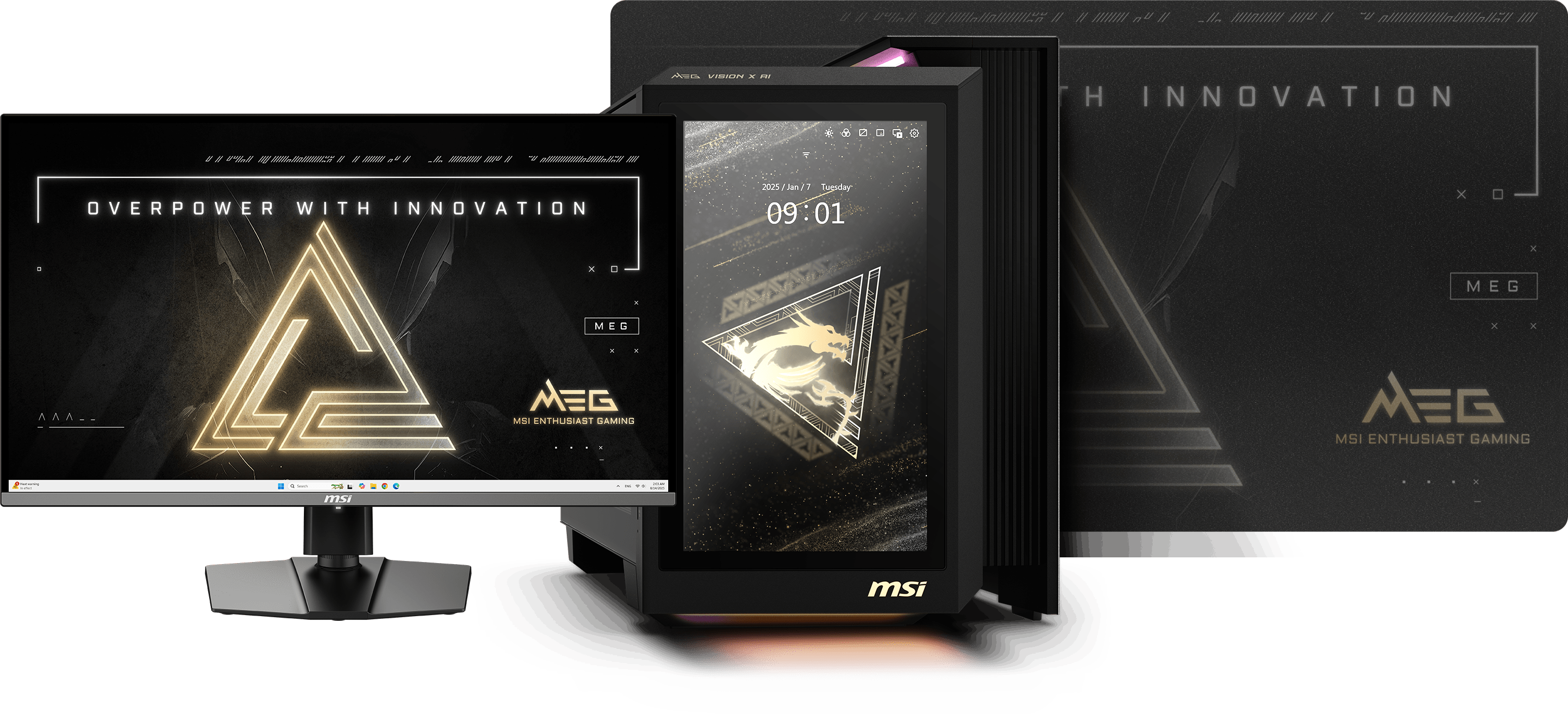
See. Hear. Feel. AI.
Redefine the way you interact with a powerful gaming desktop, keeping everything under control and all at a glance.
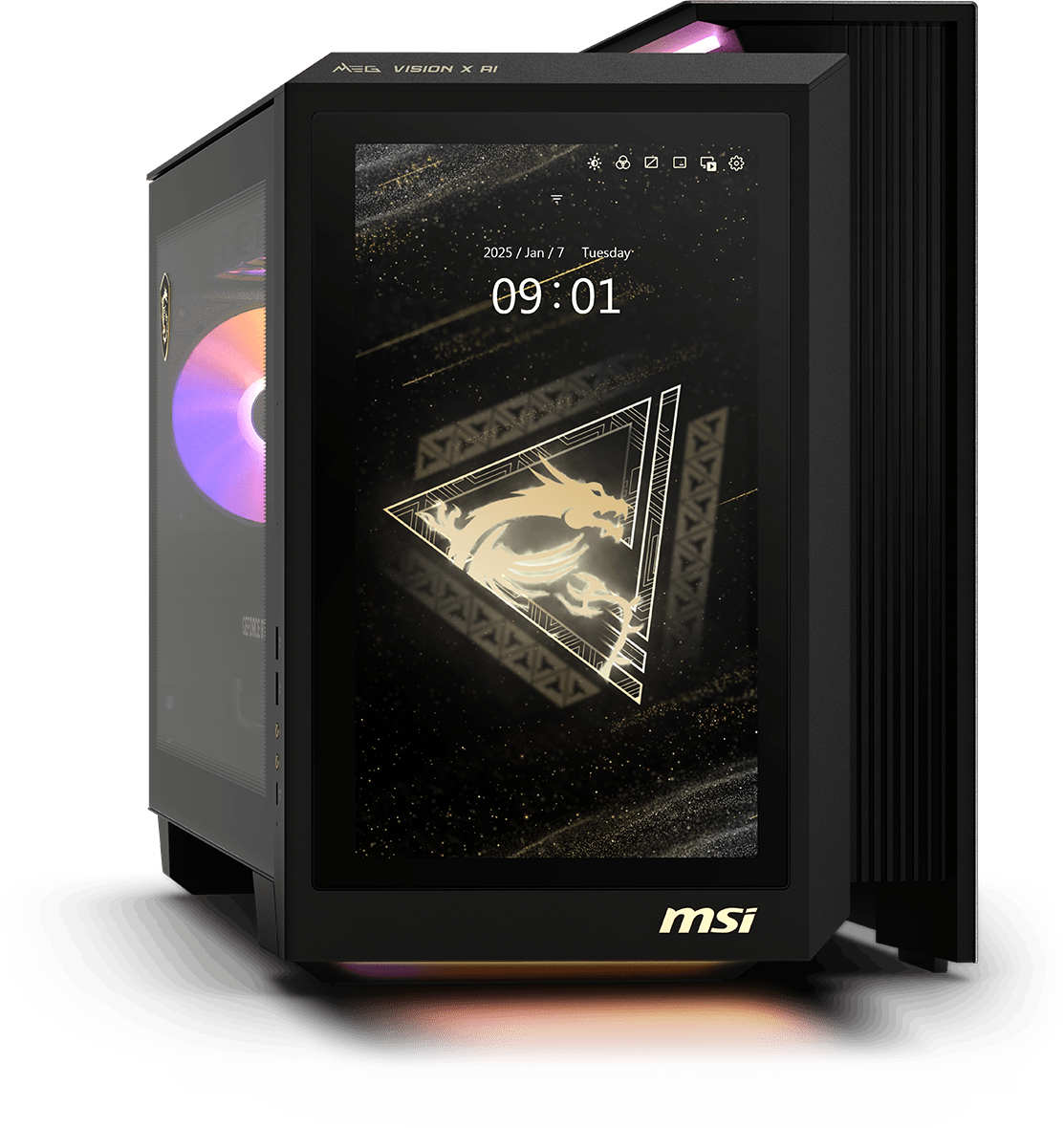
What’s New with the HMI?
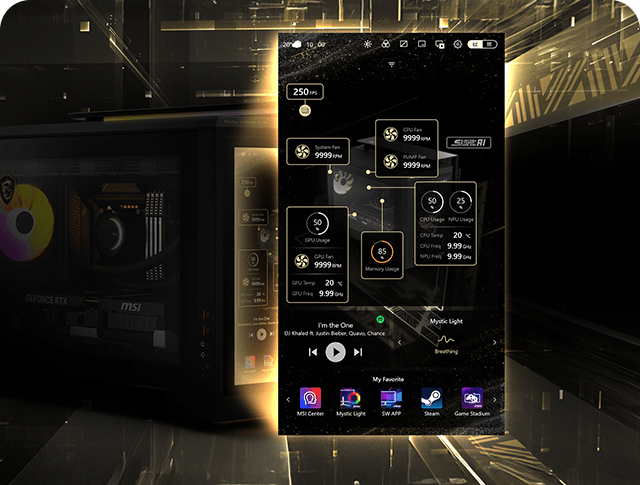
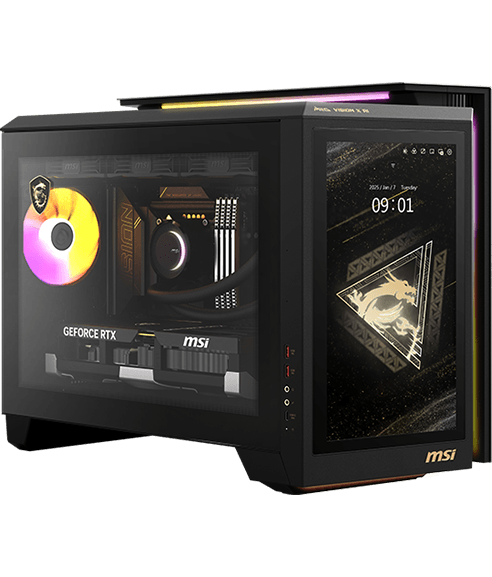
The MEG VISION X AI's AI HMI now features the all-new EZ Mode.
EZ Mode brings a streamlined, distraction-free interface to the AI HMI, focusing solely on essential controls. It simplifies system management while maintaining intelligent functionality — giving users a smarter, more intuitive experience.
Discover More about HMI
March 05,2025
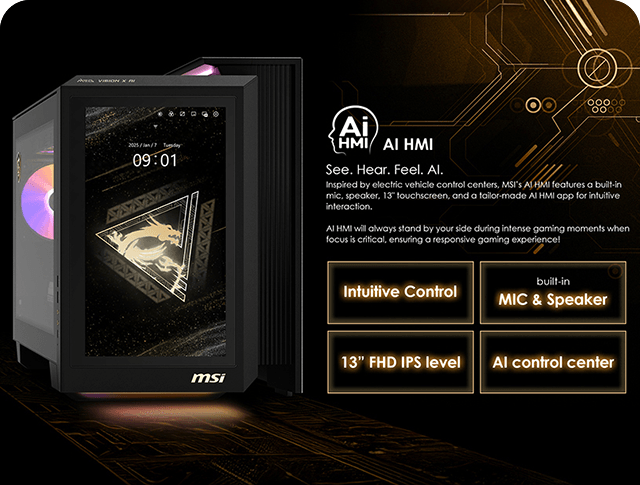
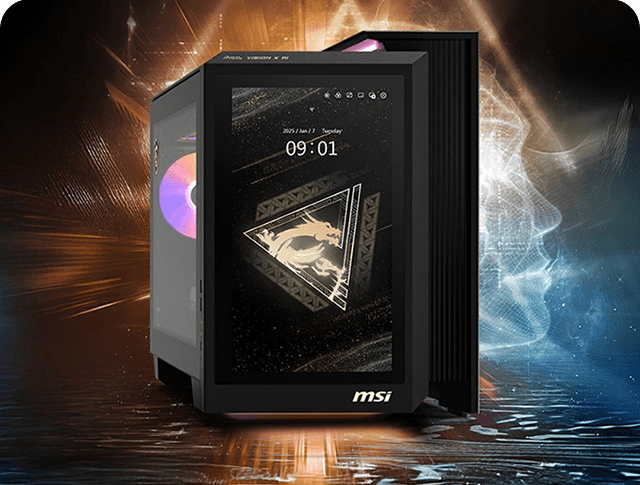
Revolutionize Your Desktop PC with a 13-Inch Touchscreen:
Introducing AI HMI In today's fast-paced digital world, seamless interaction between users and machines is more important than ever. Advanced industries, including space [...]
March 05,2025
AI HMI Walkthrough from Setup to Advanced Features
In today's fast-paced digital world, seamless interaction between users and machines is more important than ever. Advanced industries, including space [...]
March 05,2025
EZ Mode Walkthrough
MSI’s brand-new AI HMI – EZ Mode, inspired by electric vehicle infotainment systems, is now available for update via MSI Center. Experience intuitive PC control with MSI’s AI HMI EZ Mode. See real-time AI operations, hardware performance, and cooling status—all clearly visualized at a glance. Animated visuals also demonstrate how AI Cooling works. Focus on what matters and stay efficient and streamlined.


The Evolution of MSI HMI
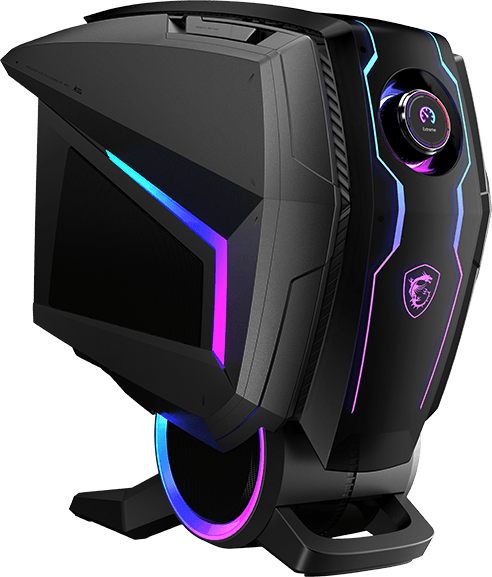
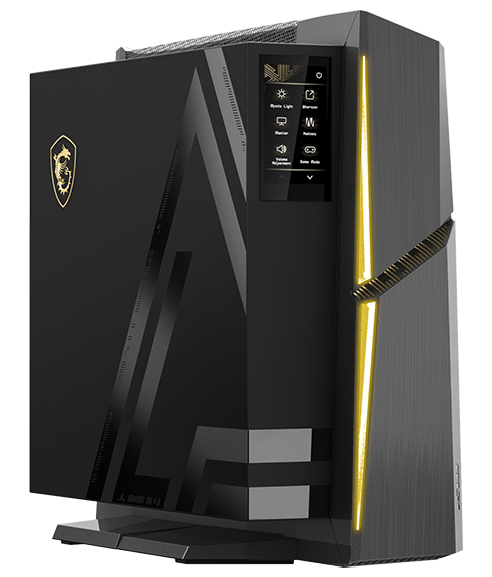
From intuitive controls to AI-driven interaction, the evolution of MSI HMI has redefined how gamers connect with their PCs. What began as simple system monitoring has transformed into a powerful AI-assisted hub—delivering smarter insights, seamless customization, and a truly next-gen gaming experience.
FAQs
MSI HMI is a feature that allows you to control your PC with your voice.
Please click the icon in the upper right corner to minimize the AI HMI app. Once minimized, you can drag content from the main screen onto the AI HMI panel. Icon :
Please click the icon in the upper right corner to turn off the AI HMI panel. To wake the screen, simply tap anywhere on the display once.
When the CPU, SSD, or graphics card reaches a certain temperature, the Silent Storm Cooling AI will be activated and the animation will be displayed.
The AI HMI features a simplified UI design for easy user operation. For detailed instructions, please refer to the video and article resources.
This feature is currently not supported.
No, the AI HMI requires the original MSI proprietary motherboard to function.
The AI HMI is illuminated in the same way as a laptop display, using eDP (Embedded DisplayPort) for activation.
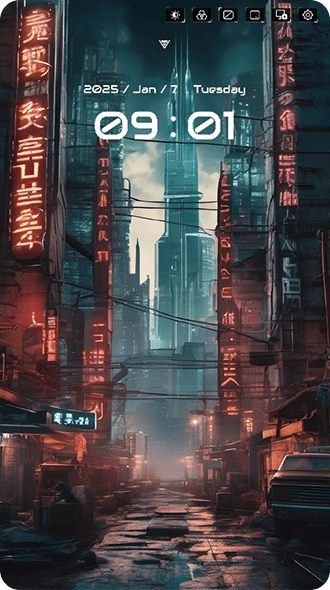
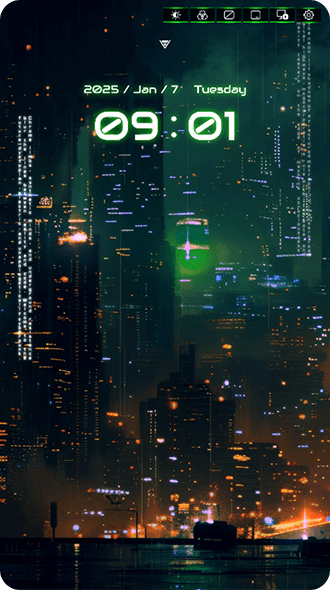
You can switch to the time mode by clicking the triangle arrow, then tap anywhere on the screen to hide the time bar and show only the background.